New Introducing the redesigned dashboard

Meet the new Screenfluence dashboard.

Redesigned from the ground up. A cleaner, simpler way to manage your library, loops, campaigns and every screen in your network — all from one place.

Why we redesigned it

Redesigned from the ground up.

Digital signage networks grow — more screens, more sites, more people publishing. The new dashboard is built to stay clear and fast as yours does.

  1. 01

    Cleaner.

    One navigation, clear page titles and the same patterns on every page — so your team always knows where things live.

  2. 02

    Smarter.

    The Overview brings player status, recent activity and quick actions together, so what needs attention is the first thing you see.

  3. 03

    Simpler.

    Uploading, building a loop and scheduling a campaign are each one click from the Overview. Less hunting, more publishing.

Overview

Your whole network, at a glance.

Start every session with a live picture of your signage: library assets, loops, campaigns and players in one view, with what your team changed and what needs your attention.

  • Live player fleet status
  • Recent activity across your team
  • Quick actions for the jobs you do every day
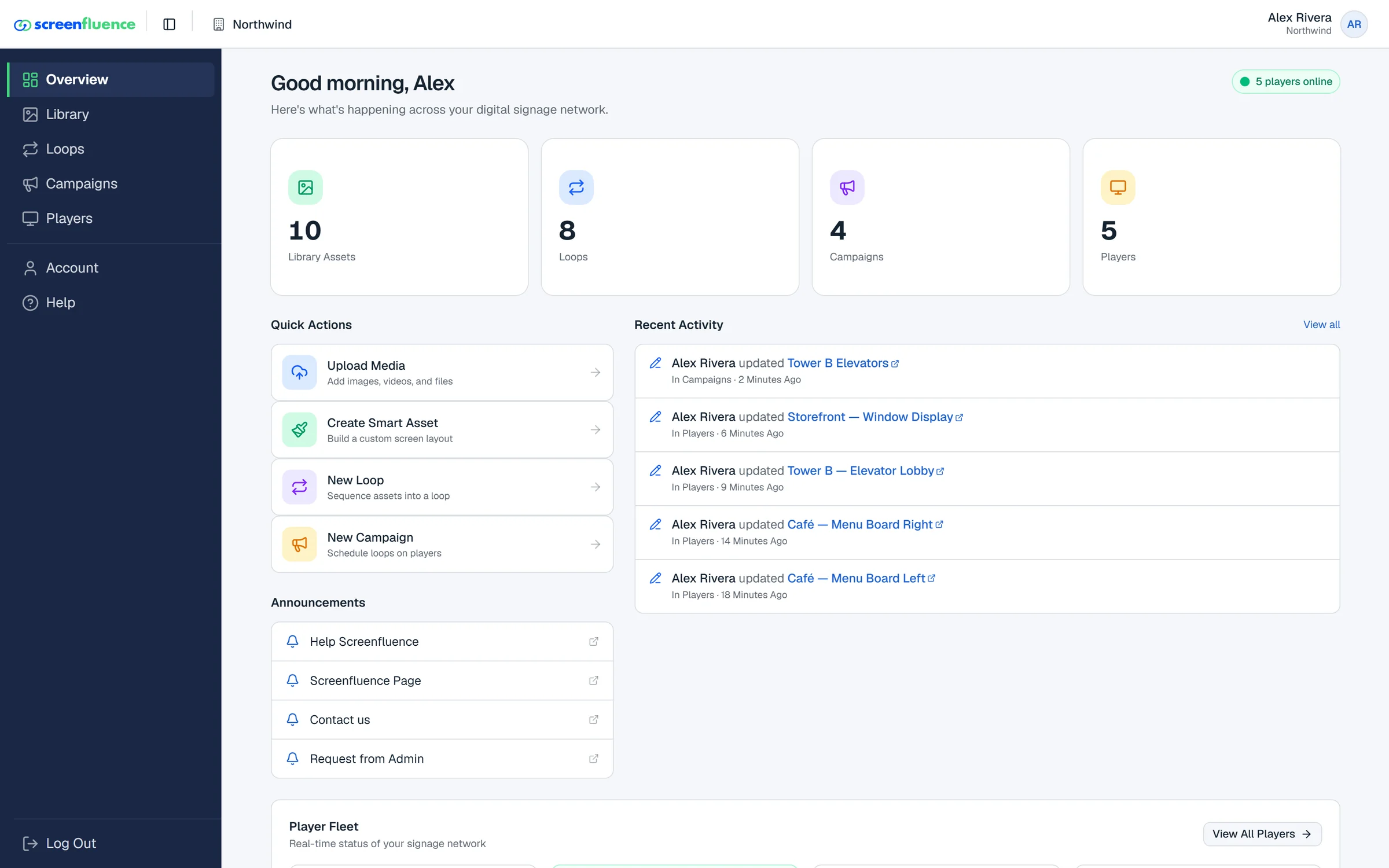
The Overview page of the new Screenfluence dashboard, showing totals for library assets, loops, campaigns and players, quick actions and recent activity

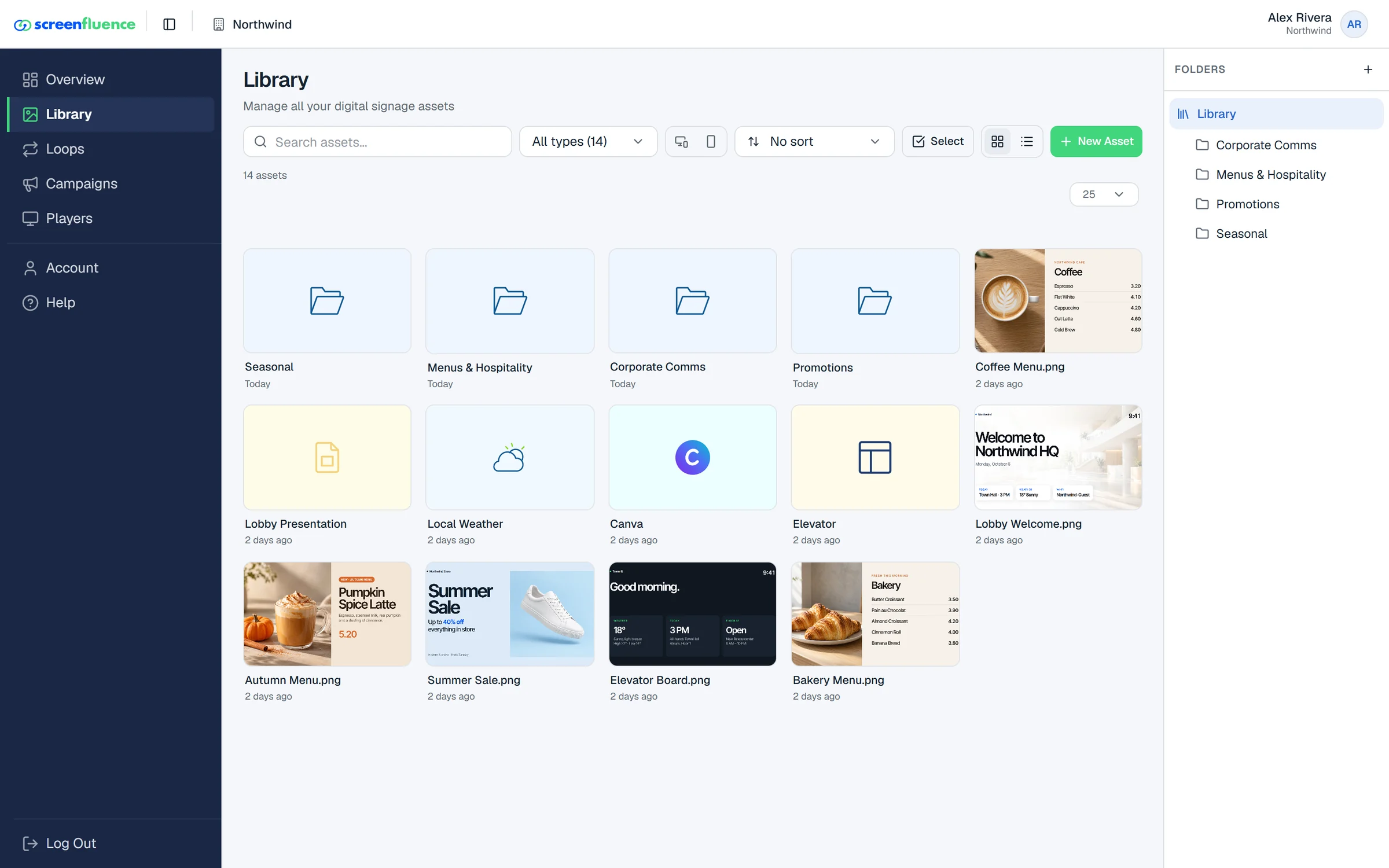
Library

Every asset, organized.

Upload images, video and files, sort them into folders, and find anything with search and filters for type and orientation. Smart assets bring live content from the tools you already use.

  • Folders, search and filters
  • Grid and list views
  • Smart assets for live content

Smart asset types

  • Screen Editor
  • PDF
  • Website
  • Google Sheets
  • Google Slides
  • Canva
  • Weather
The Library page with folders, menu boards, promotions and smart assets such as Canva and Local Weather

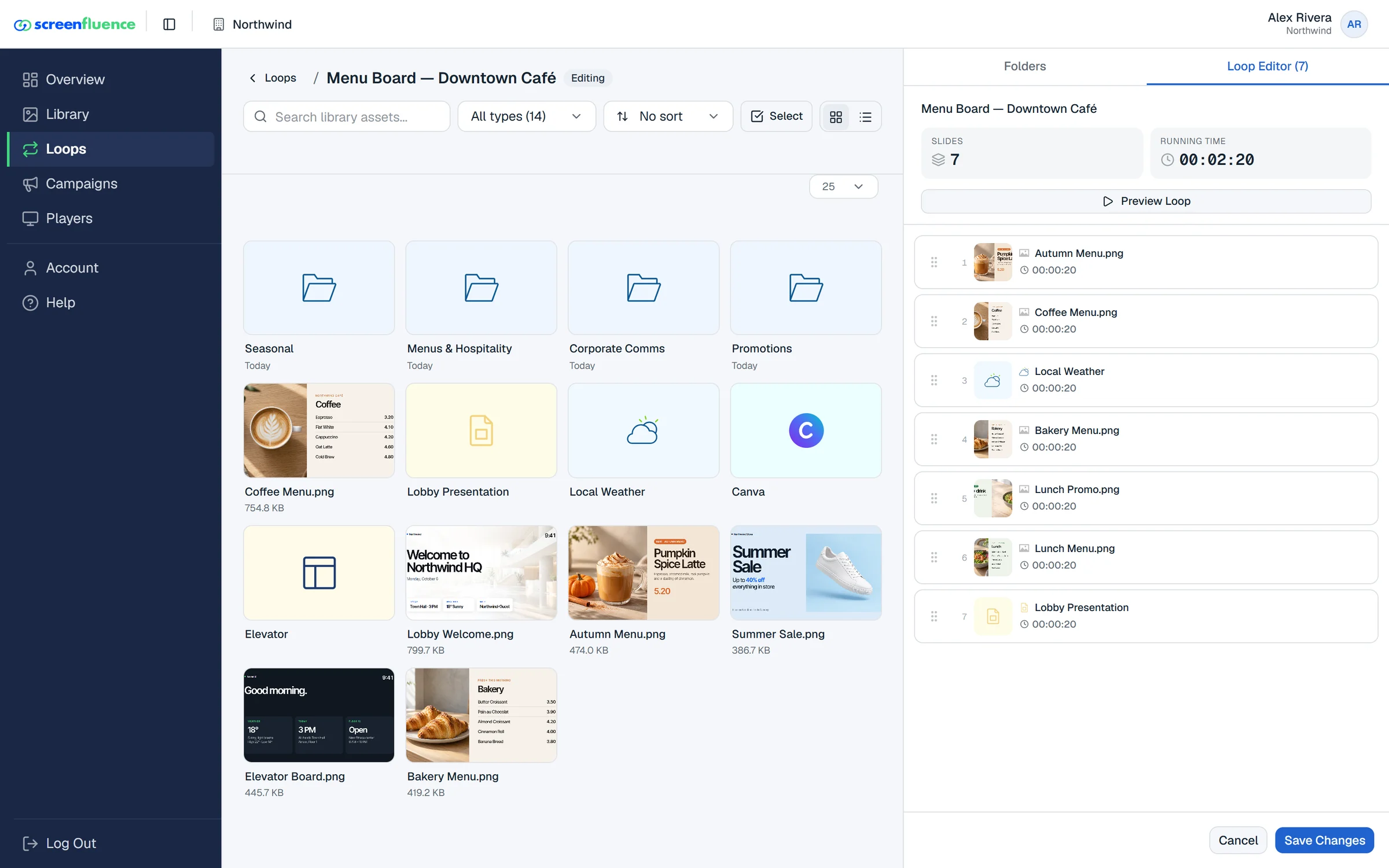
Loops

Build loops in seconds.

Drag assets from your library straight into a loop, put them in order, and watch the running time update as you go. Preview the loop before it goes anywhere near a screen.

  • Drag-and-drop ordering
  • Per-slide durations and total running time
  • Preview before you publish
The loop editor: the library on the left and a seven-slide café menu loop with its running time on the right

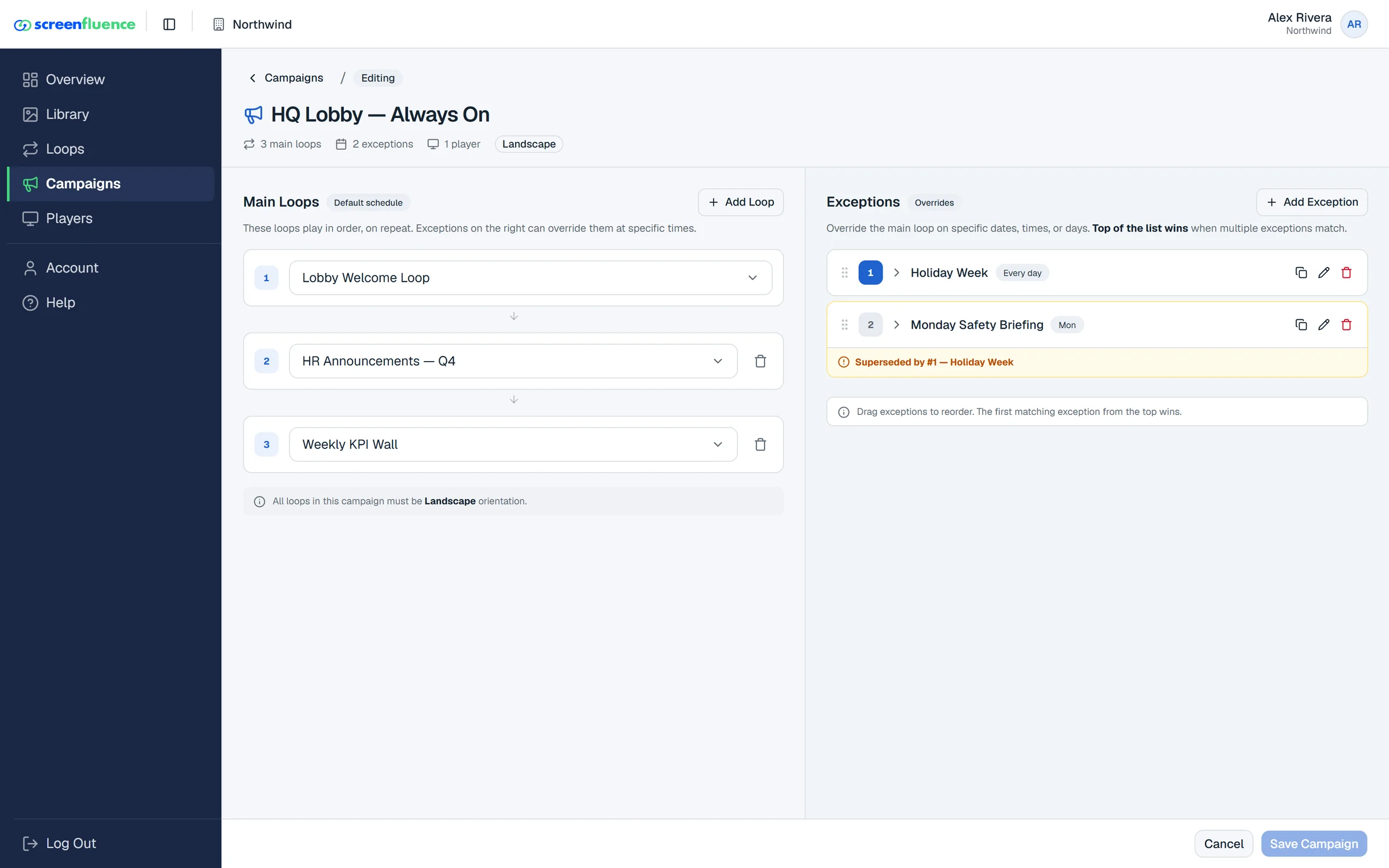
Campaigns

Schedule anything.

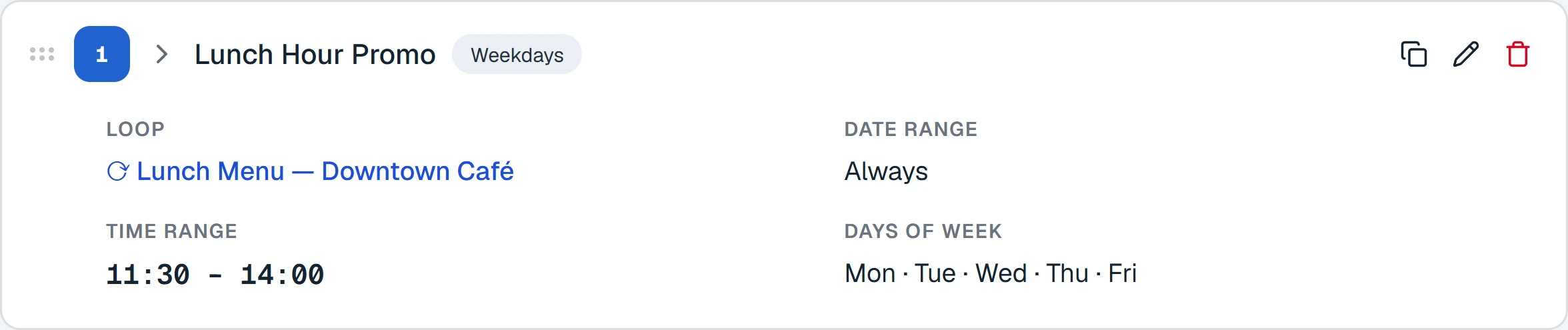
Set the main loops that play by default, then add exceptions for specific dates, times or days of the week — the lunch menu from 11:30, the safety briefing every Monday.

  • Main loops plus scheduled exceptions
  • Time ranges, date ranges and days of the week
  • Clear priority: the top exception wins, conflicts are flagged
The campaign editor for HQ Lobby — Always On, with main loops on the left and two prioritized exceptions on the right, one flagged as superseded A Lunch Hour Promo exception: Lunch Menu loop, 11:30 to 14:00, Monday to Friday

Players

Every screen. Live.

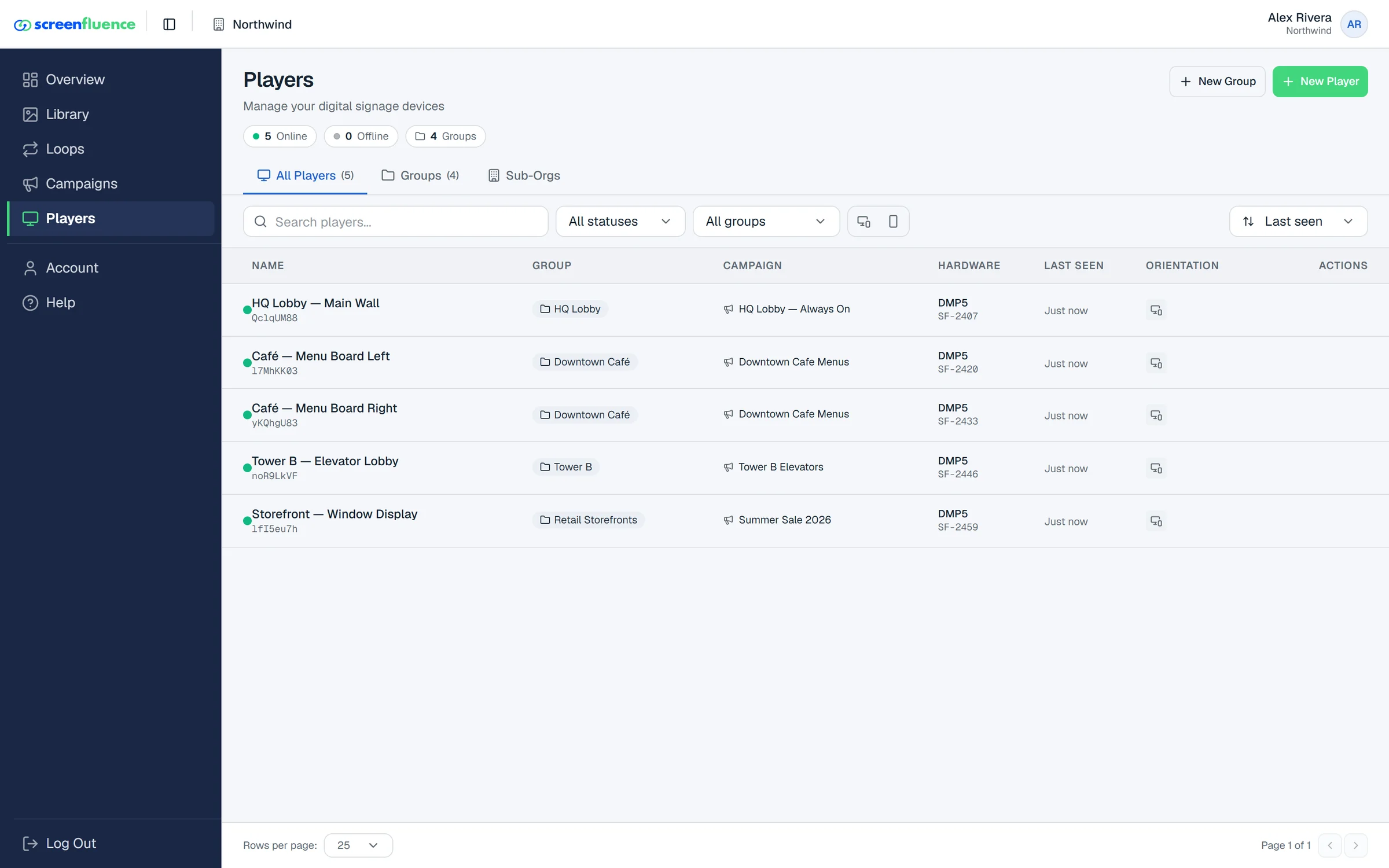
See every player’s status, group, campaign and orientation in one table. Open any device for its location, time zone, diagnostics and notes, and take a screenshot or reboot it remotely.

  • Online and offline status at a glance
  • Groups and sub-organizations
  • Remote screenshot and reboot
The Players page listing five online players with their groups, campaigns and hardware

Account & organization

Built for teams and multi-site networks.

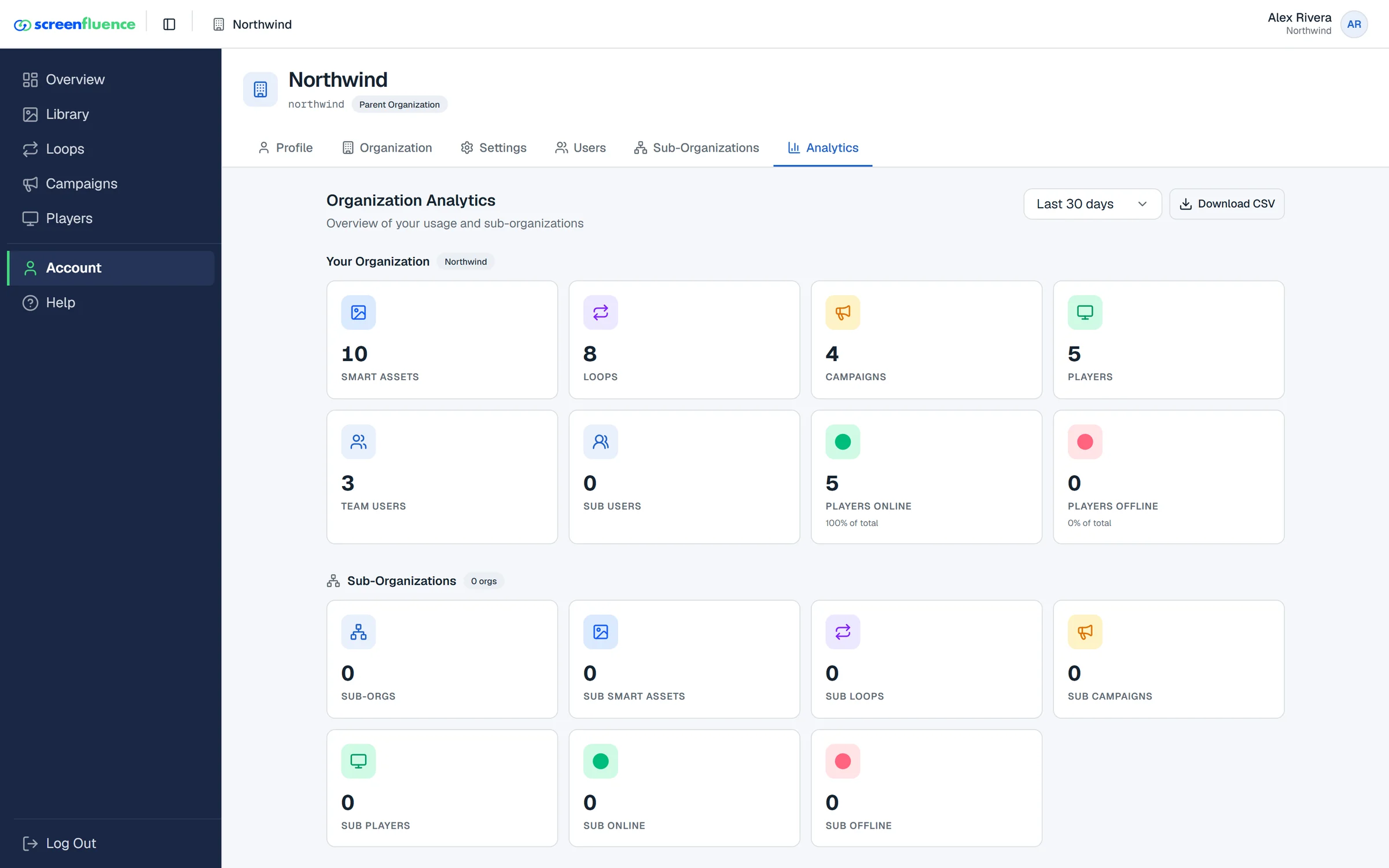
Manage your profile, organization, settings, users and sub-organizations from one place, and review organization analytics for any period — with a CSV export when you need to report upwards.

  • Team users and sub-organizations
  • Organization analytics by date range
  • Export to CSV
Organization analytics showing smart assets, loops, campaigns, players, team users and players online

One dashboard, every location

Update once. See it everywhere.

Menu boards, lobby walls, storefront windows and elevator screens — published, scheduled and monitored from the same dashboard.

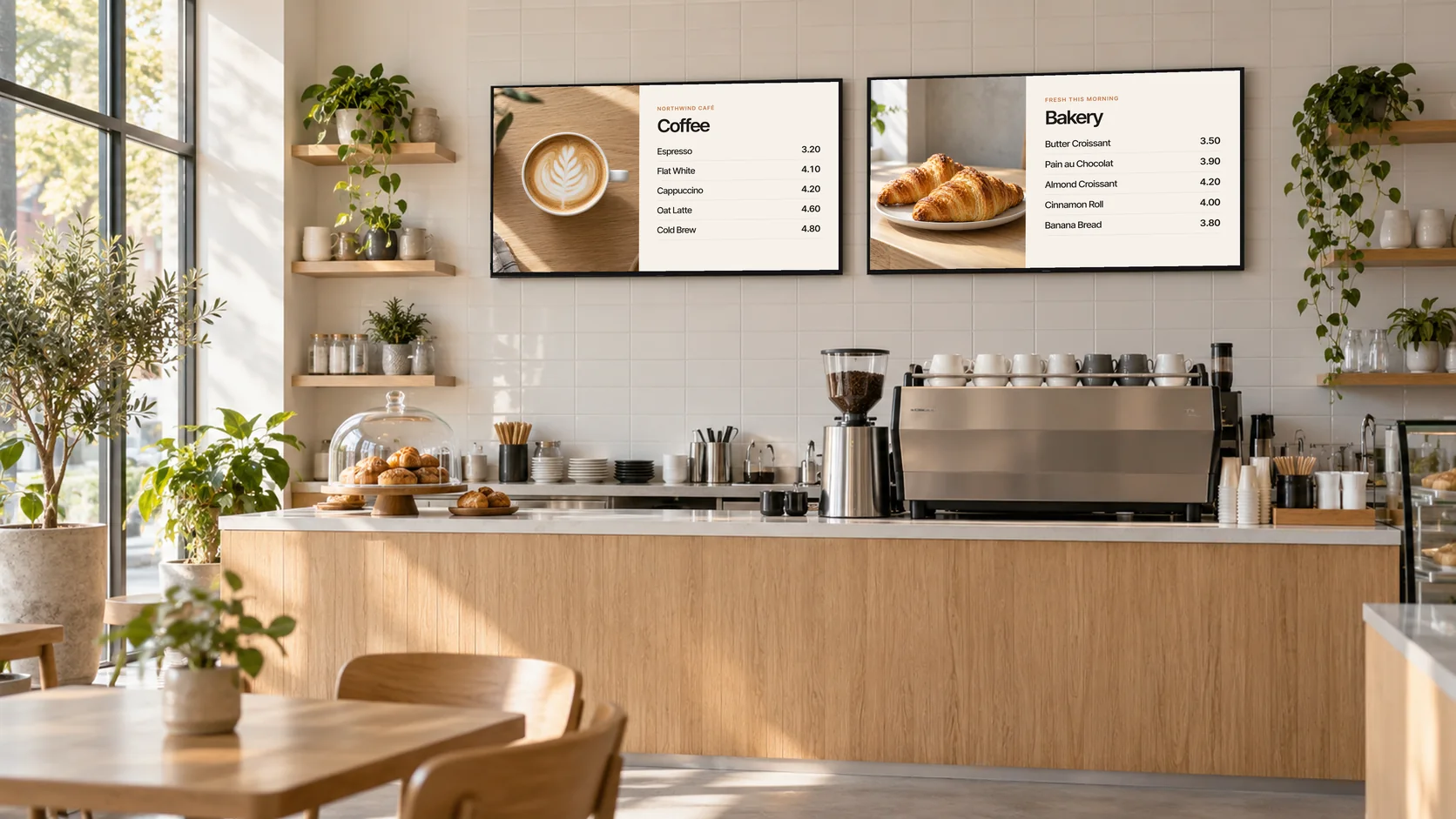
Two café menu boards showing coffee and bakery menus Café — Menu Boards
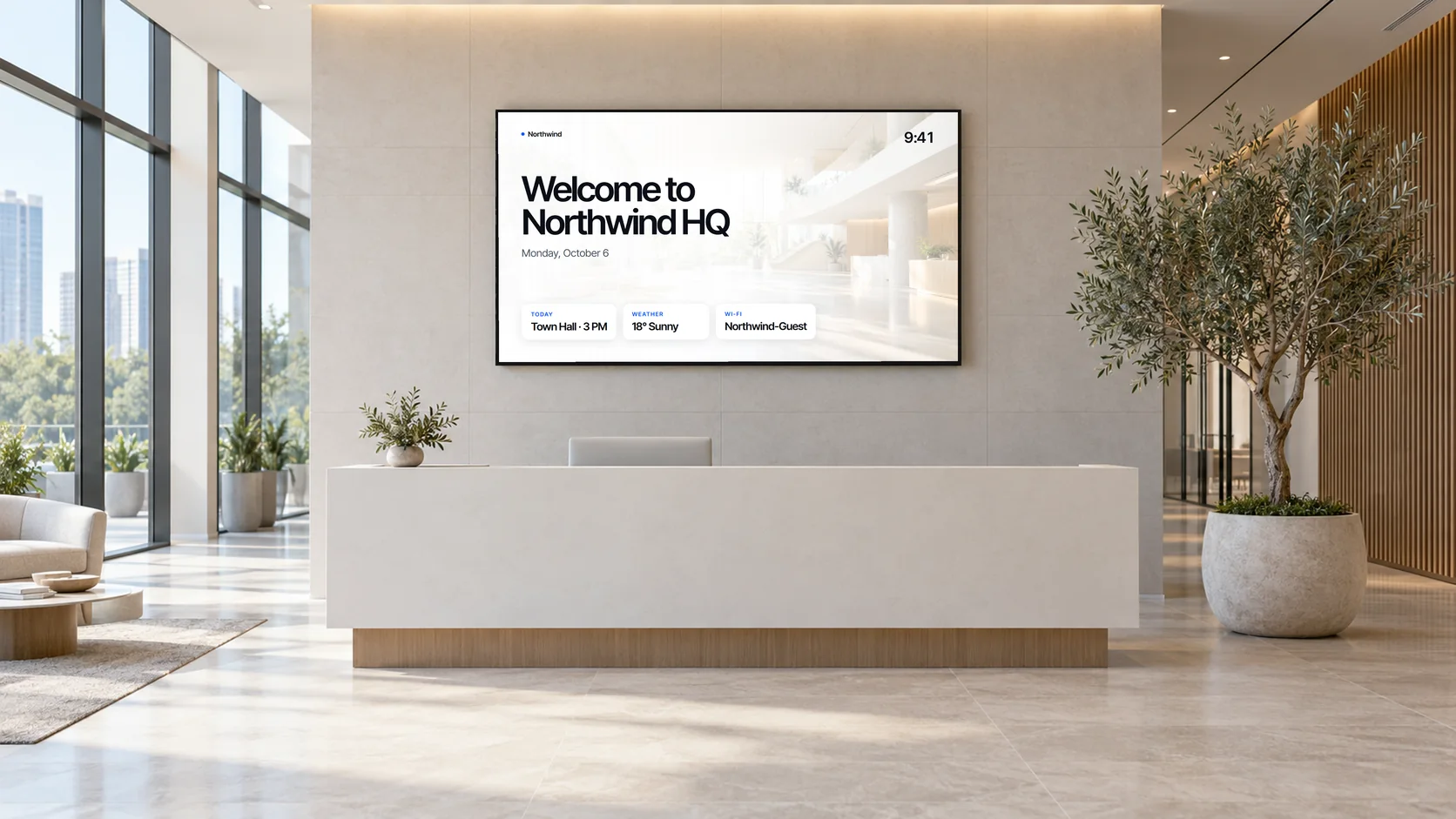
A reception lobby screen welcoming visitors to Northwind HQ HQ Lobby — Main Wall
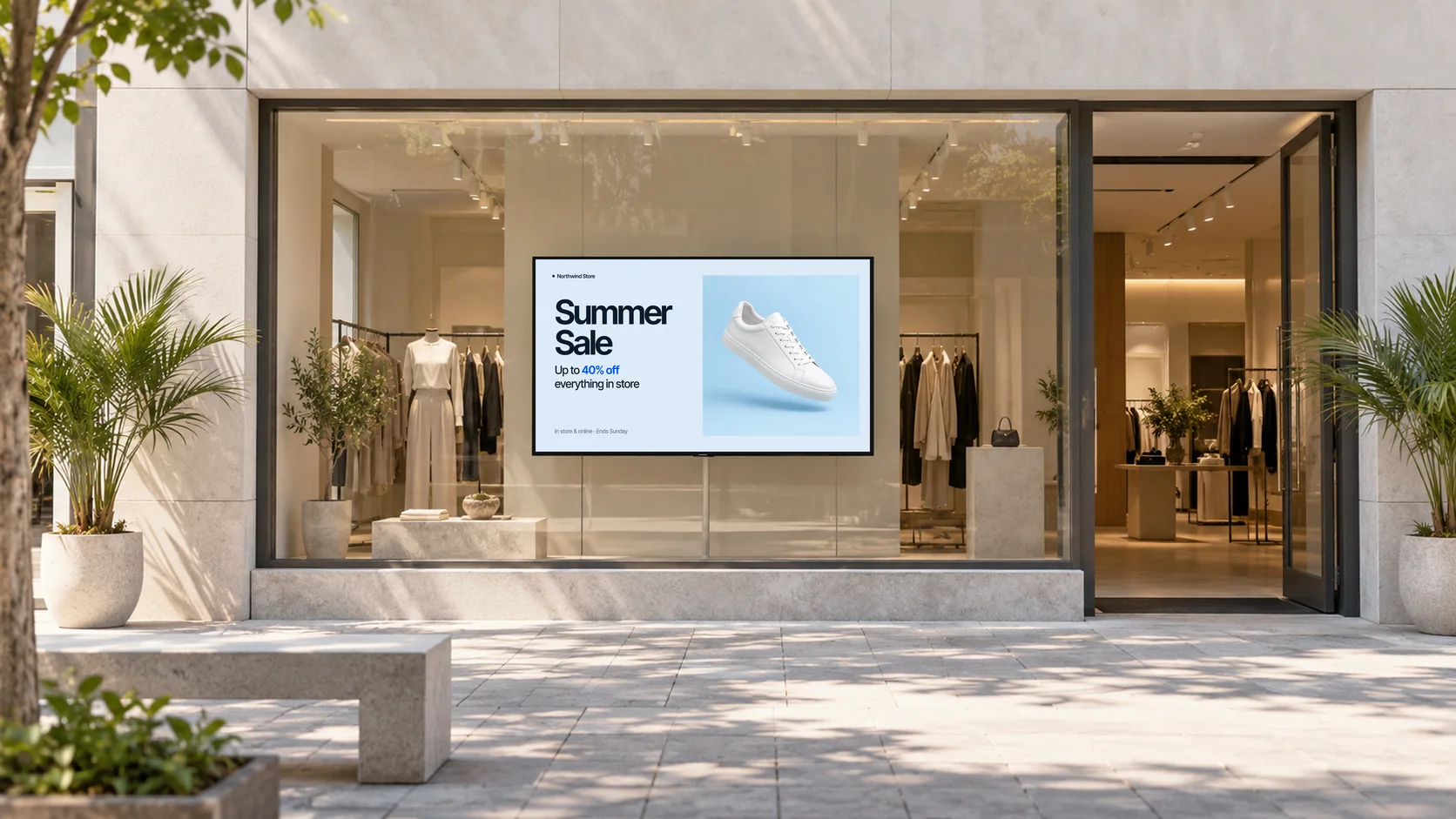
A boutique window display showing a summer sale Storefront — Window Display
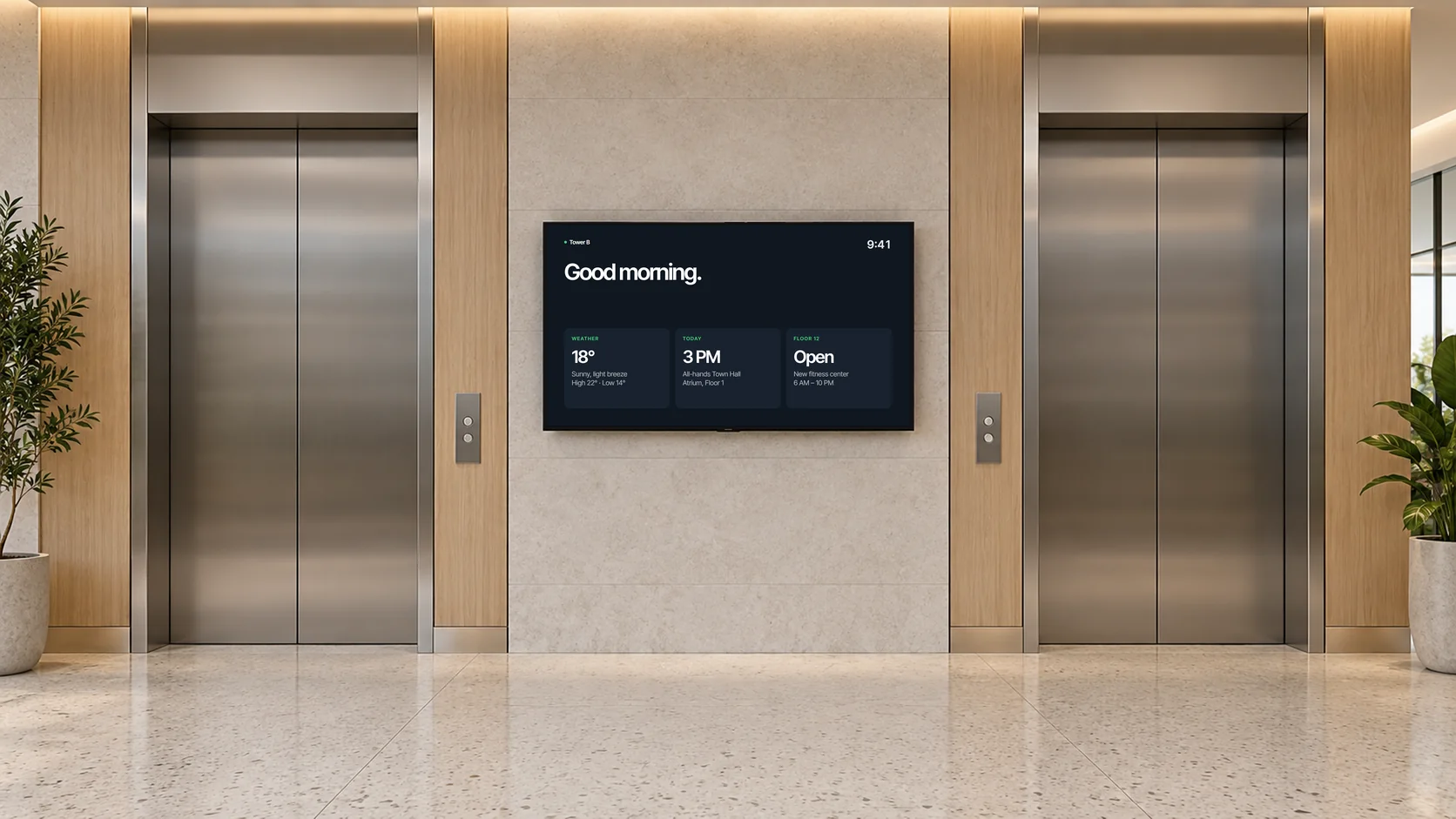
An elevator lobby screen with the weather and today’s events Tower B — Elevator Lobby
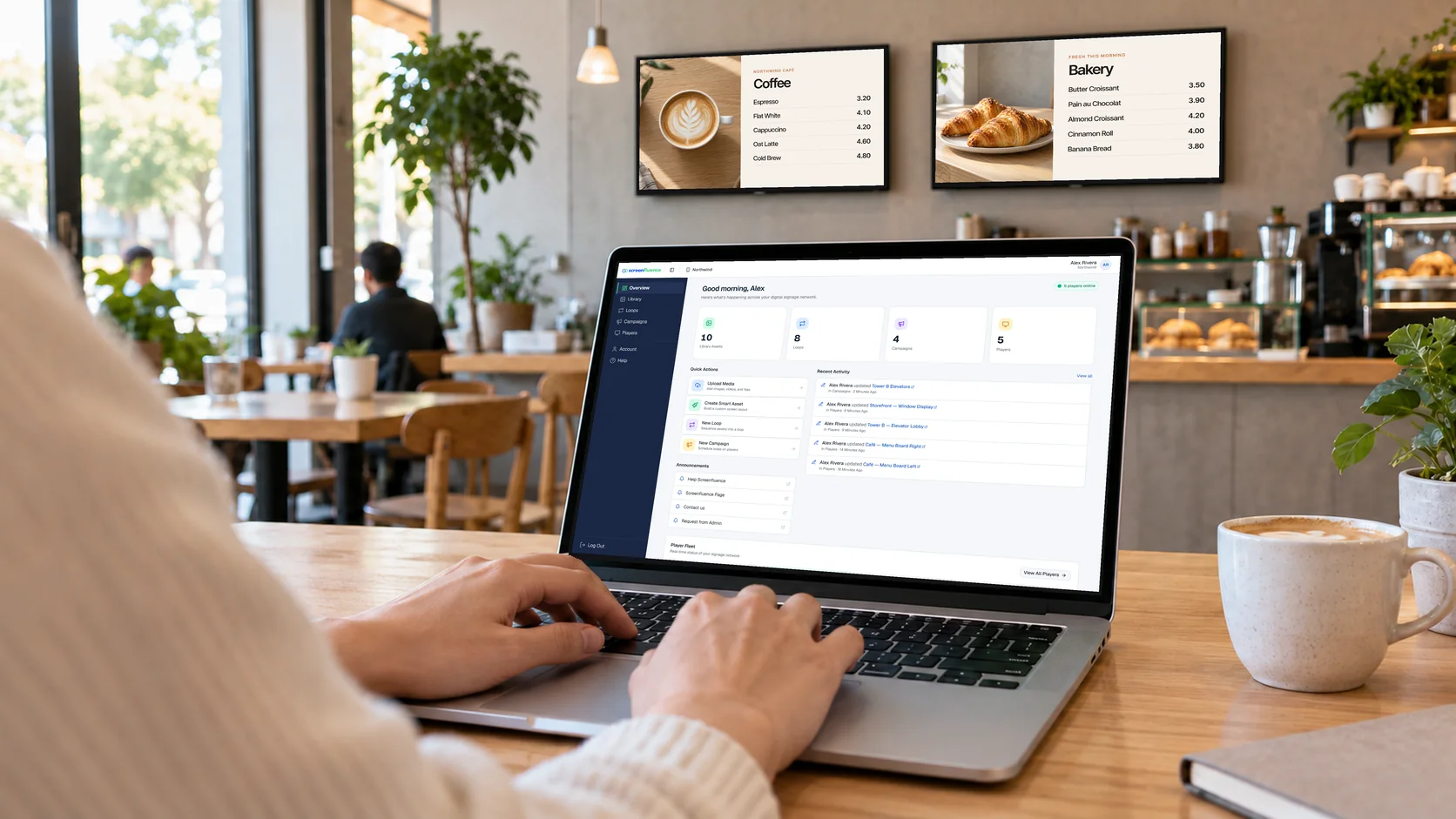
A manager using the Screenfluence dashboard on a laptop in the café Managed from one dashboard

Run every screen, from one place.

New to Screenfluence? See the redesigned dashboard on a live demo, tailored to your screens and locations.