
Image Source: unsplash
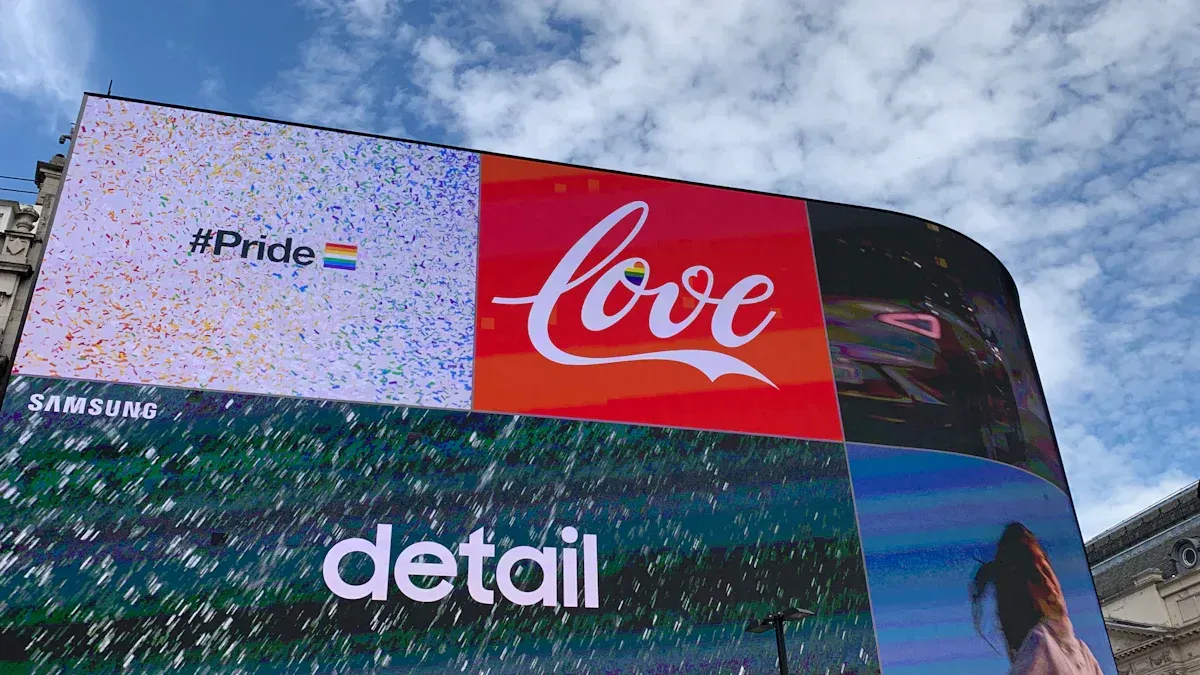
Creating cool digital signs using PowerPoint for Digital Signage can be simple and cheap. PowerPoint helps you make great designs without special tools or skills. In 2025, new features let you create fun displays for any screen. With PowerPoint for Digital Signage, you can change basic ideas into awesome pictures fast.
Why Pick PowerPoint for Digital Signs?
Affordable and Easy for Everyone
PowerPoint is a cheap way to make digital signs. You don’t need pricey programs or fancy computers to use it. Many people already have PowerPoint at work or school. If not, it costs less than most design tools. PowerPoint files are small and work on regular computers. This makes it great for small businesses or big companies alike.
Cool Features for Digital Sign Designs
PowerPoint has many tools to help your signs look amazing. Use templates, animations, and slide transitions to make them lively. Want to add your logo or brand colors? PowerPoint lets you change designs easily. You can save slides as videos or pictures for screens. Whether it’s a café menu or a school notice, PowerPoint has what you need to make awesome signs.
Simple Tools for All Skill Levels
PowerPoint is easy to use, even for beginners. Start with ready-made templates to make slides fast. Experts can use advanced tools like animations and interactive features. Here’s why PowerPoint is great for digital signs:
FeatureWhat It Does
Easy-to-use interface
Simple to understand, even for new users.
Ready-made templates
Quick designs to save time.
Works on regular computers without slowing them down.
Editable slides
Change your designs anytime you want.
Fun animations
Add movement and effects to make signs exciting.
With these tools, PowerPoint helps anyone make signs that catch eyes and keep people interested.
Creating Digital Signage Content in PowerPoint

Image Source: pexels
Setting Up Slide Dimensions for Digital Screens
Before designing, set your slides to match the screen size. Screens come in many sizes, so getting the dimensions right is key. Click “Design” in PowerPoint, then choose “Slide Size.” Pick “Custom Slide Size” and enter the width and height based on the screen’s resolution. For most screens today, 1920×1080 pixels works well. This makes sure your content looks clear and fits perfectly.
If you don’t know the screen’s resolution, check the manual or ask the provider. Doing this step correctly avoids blurry or stretched visuals later.
Designing Engaging Slides with Text and Images
Your slides should catch attention and keep people interested. Use templates to make designing faster and easier. Templates give your slides a polished look with little effort. Add big, bold headlines that are easy to read from far away. Include high-quality pictures that match your message. For example, show product images with clear prices if promoting a sale.
Keep text short and simple. People won’t read long paragraphs on screens. Use bullet points or short phrases to make your message clear. Bright colors and contrasting text help your slides stand out. This makes your audience pay attention to your content.
Adding Transitions and Animations for Dynamic Displays
Static slides can seem dull, but movement makes them fun. PowerPoint has transitions and animations to add excitement to your slides. Use transitions like “Fade” or “Wipe” for smooth slide changes. Animations can highlight important points or make images appear one by one.
Don’t use too many effects. Too much movement can confuse viewers. Stick to simple animations that support your message. For example, make a product image slide in or text fade in for focus. These features work well for retail or events to engage customers.
Incorporating Branding Elements for a Professional Look
Your slides should show your brand clearly. Add your logo to every slide to make it recognizable. Use your brand’s colors and fonts for a consistent style. PowerPoint templates let you customize these easily.
Include your slogan or tagline to strengthen your message. For business use, branding builds trust with viewers. For example, a café can add its logo, colors, and a phrase like “Fresh Coffee, Every Day” to menu slides.
Branding isn’t just about looks. It’s also about tone. Make sure your slides match your brand’s personality. Whether fun or professional, PowerPoint helps you create the right style.
Showing PowerPoint Signs on Screens
After making your PowerPoint signs, you need to show them on screens. Whether it’s a menu, sale ad, or announcement, it’s easy to display your work.
Saving Slides as Videos or Pictures
PowerPoint lets you save slides as videos or pictures. These formats work well for digital signs.
To save as a video:
- Open the “File” menu.
- Click “Export” and pick “Create a Video.”
- Choose a resolution like 1920×1080 for clear screens.
- Save the video as an MP4 file for smooth playback.
To save as pictures:
- Go to “File” and click “Save As.”
- Pick “JPEG” or “PNG” as the file type.
- Save each slide as a separate picture for easy use.
Videos are great for moving signs with effects. Pictures are better for still signs. Both look sharp and professional.
Using Devices to Play Your Signs
Small devices like media players or PC sticks can show your PowerPoint signs on screens. These tools are cheap, small, and work well for digital signs.
Here’s what they offer:
FeatureWhat It Does
Plays videos and pictures smoothly without delays.
Works with Many Formats
Handles videos, pictures, and other content types easily.
Saves Energy
Uses little power, saving money and helping the planet.
Runs All Day
Can work 24/7 without stopping.
Easy to Expand
Lets you add more screens or update content remotely.
Remote Control
Update and fix content from anywhere using special software.
Just connect the device to your screen, load your files, and play them. For many screens, remote control makes updates simple.
Using Software to Manage Content
Digital signage software helps you organize and update your signs. It works well with PowerPoint files and makes managing screens easier.
Why use this software?
- It’s 20% more reliable on Windows 10 systems.
- It’s 15% easier to use for quick updates.
You can schedule when signs show, pick who sees them, and check how they’re doing. For example, a store can show sales during busy times and info slides when it’s quiet.
This software keeps your PowerPoint signs fresh and interesting. It helps you grab attention and share your message better.
Optimizing Your Digital Signage Presentation
Picking Fonts and Colors for Easy Reading
Choosing the right fonts and colors is very important. Your message should be clear and easy to read from far away. Follow these tips:
- Pick simple fonts like Arial, Verdana, or Helvetica.
- Try different fonts to see what fits your design best.
- Make sure text is readable from 30 meters away. Use bold letters and adjust sizes for better visibility.
Colors are just as important as fonts. Use high contrast between text and background. For example, white text on a dark background stands out. Avoid colors that are too similar, as they can hurt the eyes. When fonts and colors work well together, your signs look great and share your message clearly.
Tip: Use trusted font sources to make your designs look professional.
Setting Correct Aspect Ratios and Resolutions
Your signs should look clear and fit the screen perfectly. To do this, use the right aspect ratio and resolution. Most screens today use a 16:9 aspect ratio. A resolution of 1920×1080 pixels (Full HD) works well for sharp images.
If you don’t know the screen’s settings, check the manual or ask the provider. Wrong settings can make your signs blurry or stretched. Always test your design on the screen before showing it. This way, you’ll know it looks just right.
Keeping Messages Short and Eye-Catching
Short messages work best for digital signs. People don’t have time to read long texts. Use quick, clear messages to grab attention fast. Studies show people remember 65% of visuals but only 10% of text.
Use bullet points or short phrases to keep it simple. Add high-quality pictures to make your message stronger. For example, write “50% Off Today Only!” with a picture of the product. This keeps people interested and helps them remember your message.
Pro Tip: Short messages make your signs look neat and professional.
PowerPoint helps you make digital signs easily and quickly. Its simple tools and design features let you create fun slides fast. You can update slides, add cool effects, and keep designs consistent. Use it to show goals, share successes, or grab customer attention. PowerPoint makes your work look professional every time.
Tip: Begin with basics! Try templates and effects to turn ideas into exciting signs.